DDNS
Follow these steps to enable Dynamic DNS Updates by the DHCPv4 service running your DNSVault:
- On the General Properties page of a subnet, click the DDNS tab.
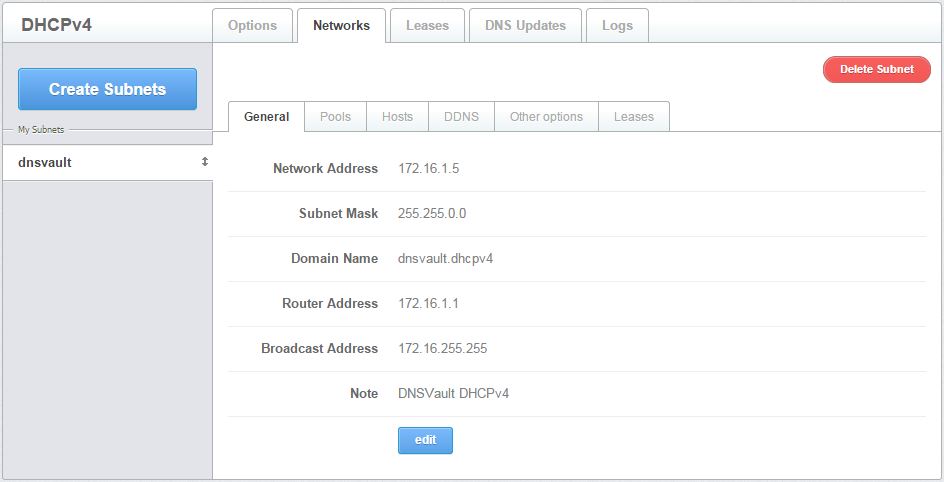
Figure 3.1.2.2.3-a: The General Properties page of a Subnet
- Clicking the DDNS tab displays setting Dynamic DNS for that subnet.
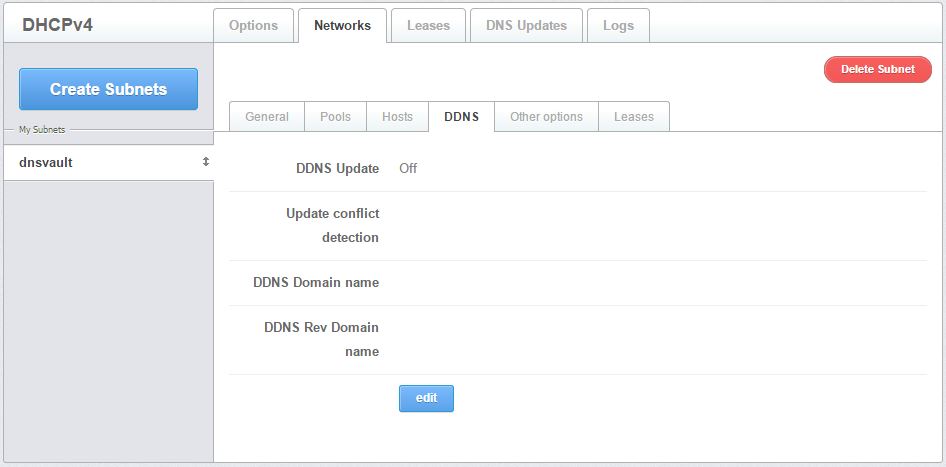
Figure 3.1.2.2.3-b: Inside the Dynamic DNS Updates tab
- To modify a particular DDNS, click the Edit button.
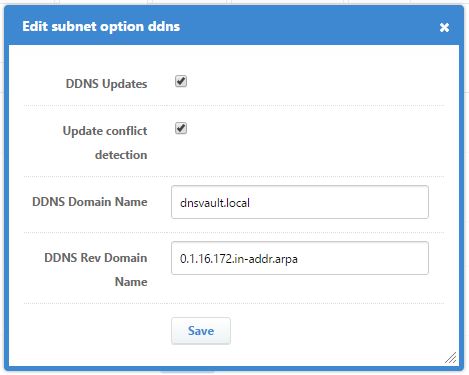
Figure 3.1.2.2.3-c: The Edit DDNS page
Click check DDNS Updates to keep dynamic DNS is up to date.
Click check Update Conflict Detection to update if your DDNS is conflicted.
Enter a Domain Name for the forward DDNS in the field provided.
Enter a Domain Name for the reverse DDNS in the field provided.
Click the Save button to commit the changes. Otherwise, click Cancel.