Domains
Follow these steps to add a Domain (Forward Zone) to be dynamically updated:
On the Upper Menu bar, click the DHCP tab. On the drop down menu, click DHCPv4 category object, then click Enable toggle to enable DHCPv4 module (if Disable). You will then be directed to the default General page.
Click the DNS Update tab, and click Domains tab.
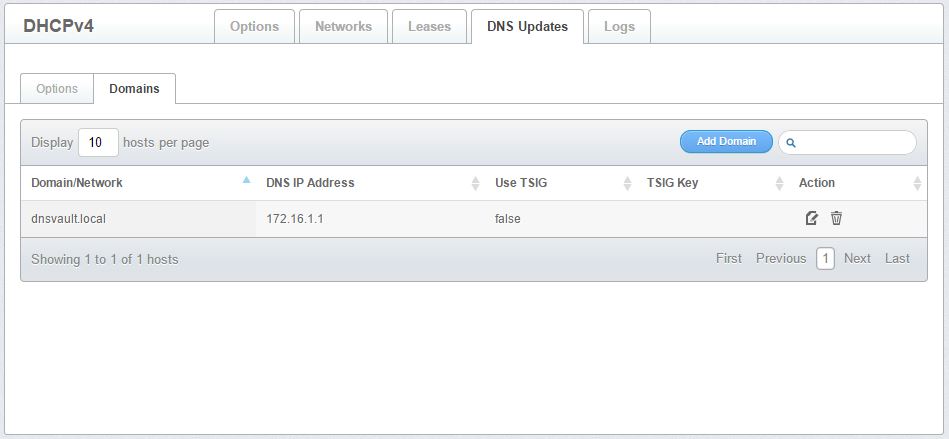
Figure 3.1.4.2-a: Forward Zone for DDNS
- At the DNS Updates page, click the Add Domain button to display the Add a Domain form.

Figure 3.1.4.2-b: Add a Domain Form
Enter the Domain Name you wish to update.
Specify the IP Address of the Primary DNS server containing the Domain in the fields provided.
To use transaction signatures to authenticate data sent between the DHCPv4 and DNS servers, click check the Use TSIG (Optional) checkbox.
Click the Save button to commit the settings. Otherwise, click Cancel.